Deploy a Node.js app with Postgres on Hostwolf Apps
Connect a GitHub repository, create PostgreSQL, set DATABASE_URL and deploy a Node.js application with a custom domain.
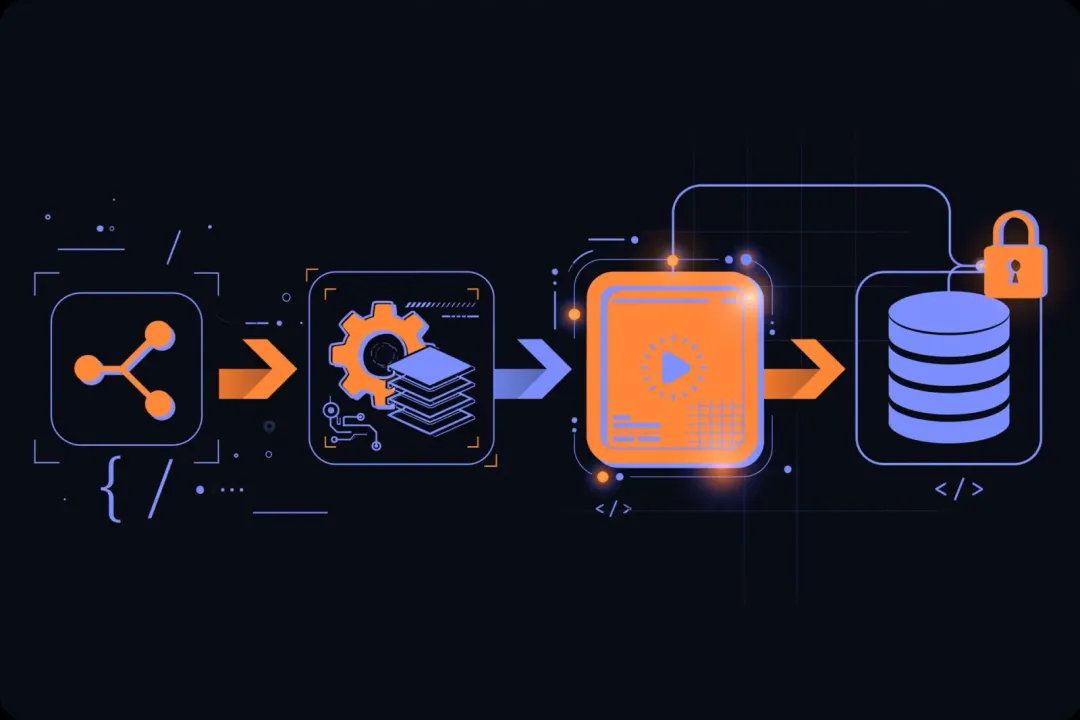
This guide assumes you have an Apps server, a GitHub repository containing a Node.js application and a domain you can edit. Your application must already support PostgreSQL through a connection string such as DATABASE_URL. Adding that variable does not install a database driver or create your schema.
Prepare the repository
Commit package.json and your package manager's lockfile. Define a production start script and, if needed, a build script. A TypeScript service might compile into dist/ and start with node dist/server.js; use the actual entry point in your repository.
Make the HTTP server listen on 0.0.0.0, rather than only localhost, and use a configurable port:
const port = Number(process.env.PORT || 3000);
app.listen(port, '0.0.0.0');
This example assumes app is an Express application you have already created. Add a health endpoint that returns a successful HTTP status when the service is ready. Do not commit .env files containing credentials.
Create a project and add the GitHub repository
In the console, open Projects, create a project and select an environment. Add a new resource and choose the GitHub application source appropriate for your repository. A private repository needs a GitHub integration with access to it; authorize only the repositories you intend to deploy.
Select the repository, branch and target server. The Coolify-based panel can build from a Dockerfile or a supported build pack. Use a Dockerfile when your repository already defines one. Otherwise, check the detected install, build and start commands before saving them. Match the application's exposed port to its actual listening port, for example 3000.
Add PostgreSQL on the same server
In the same project environment, add a PostgreSQL database resource. Select the server and destination used by your application so the internal hostname can be reached over the deployment network. Set the database name and credentials, save the resource and start it.
Open the database's connection settings and copy the internal PostgreSQL URL. It contains the generated hostname, credentials, port and database name. Do not replace the hostname with localhost: inside an application container, localhost means that application's own container. You do not need to expose PostgreSQL publicly for an application on the same network.
Set DATABASE_URL and deploy
Open the application's environment variables. Add DATABASE_URL using the internal URL copied from the database. Set it as a runtime variable. Only make it available during builds if your build actually needs database access; do not expose it to frontend bundles or print it in logs.
Set PORT=3000 if that is the port configured for this application, and use the production settings expected by your framework. Save the variables and select Deploy.
Watch the deployment logs through installation, build and startup. If the app needs migrations, run the migration command documented by your framework using the panel's terminal or an explicitly configured deployment command. Review migrations before running them against production: changes that drop columns or rewrite data require a separate recovery plan.
Check runtime logs and the health endpoint. A connection error usually calls for checking the database's running state, internal hostname, credentials and network placement. Avoid publishing credentials when asking for support.
Configure a custom domain
In the application's domain settings, add the HTTPS URL you want, such as https://api.example.com. Set the domain's DNS record to the server address shown in the console. Remove conflicting records, including an IPv6 record if the server is not reachable at that IPv6 address.
Save the settings and redeploy if requested. Once DNS resolves correctly and the proxy can issue a certificate, open the HTTPS URL and test a request that uses PostgreSQL. Confirm that redirects and any framework trusted-proxy settings behave as intended.
Finally, configure a database backup and test a restore into a separate database before relying on this deployment. Review available server sizes in Apps pricing if builds or database queries exceed your current resources.